Step 10
Examine the electron density |
Press the Orbitals button  in the toolbar at the bottom of the view window, to open the Orbitals window, Figure
 ![[*]](TUTORIALS/crossref.png) . The graph on the left side of the window shows the the energy levels for the individual orbitals. The orbital list on the right contains the calculated orbitals. By default, the list and the graph are limited to displaying orbitals from an energy level of -2.5Ev and no more than the first 10 virtual orbitals. To display all calculated orbitals press the Full View button. The Default View
. The graph on the left side of the window shows the the energy levels for the individual orbitals. The orbital list on the right contains the calculated orbitals. By default, the list and the graph are limited to displaying orbitals from an energy level of -2.5Ev and no more than the first 10 virtual orbitals. To display all calculated orbitals press the Full View button. The Default View
button toggles back the default orbital range.
In the list on the right select Elect.ron density item, as shown in Figure .

Orbitals window - electron density selected
|
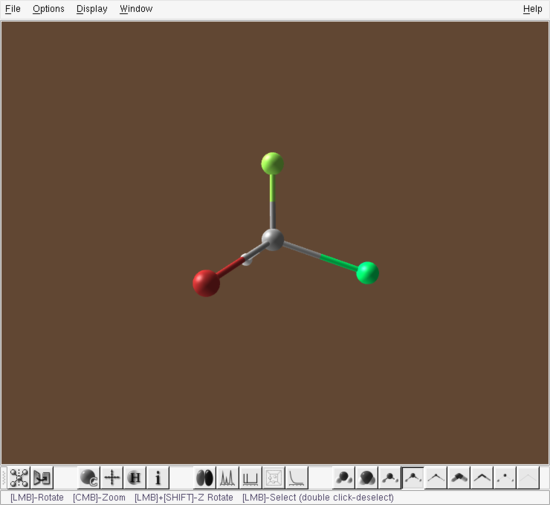
The corresponding View window is shown in Figure .

View window - electron density displayed
|
Use the Isosurface level slider in the Orbitals window to change the displayed isosurface.
Step 11
Examine the IR Spectrum |
Press the Vibrational Frequencies button  in the toolbar at the bottom of the view window. The Vibrational Frequencies window appears, Figure , displaying the simulated IR spectrum. Select the most intensive signal in the IR spectrum by clicking on highest peak in the graph or select #5 in the Frequencies list on the right.After activating the Vectors checkbox, the atomic displacements in this mode will be displayed as yellow arrows at each atom in the structure in the View window, Figure .

Vibrational Frequencies window - most intense IR mode in CHFCLBr
|
The corresponding View window is shown in Figure .
Activating the Reverse checkbox will reverse the directions of the arrows. To show an animation of the vibrational mode in the View window activate the Animate
checkbox in the Vibrational Frequencies window. To view other modes either select another peak in the simulated spectrum or select another mode number in the Frequencies list.

View window - displacements in the most intense IR mode in CHFClBr
|
Step 12
Examine the Vibrational Circular Dichroism Spectrum |
Select the VCD radio button at the bottom of the Vibrational Frequencies window. This will display the simulated VCD spectrum, Figure .

Vibrational Frequencies window - VCD spectrum, Frequency no. 5 selected
|
The corresponding vibrational modes can be displayed and/or animated in exactly the same way as for the simulated IR spectrum. Selecting the peak with positive rotational strength (signal pointing up) with the Vectors checkbox activated will show the corresponding atomic displacements in the View window, Figure . At the same time the frequency number will be highlighted in the Frequencies list on the right.
[PREV]
 Manuals and Guides