Step 12
Examine the calculated molecular orbitals. |
Press the Orbitals button  the toolbar at the bottom of the View window
. Select the HOMO (#24) in the list on the right side of the window. A line representing the energy level of the 24 orbital is highlighted in red, see Figure
 ![[*]](TUTORIALS/crossref.png) .
.

Orbitals window - HOMO selected
|
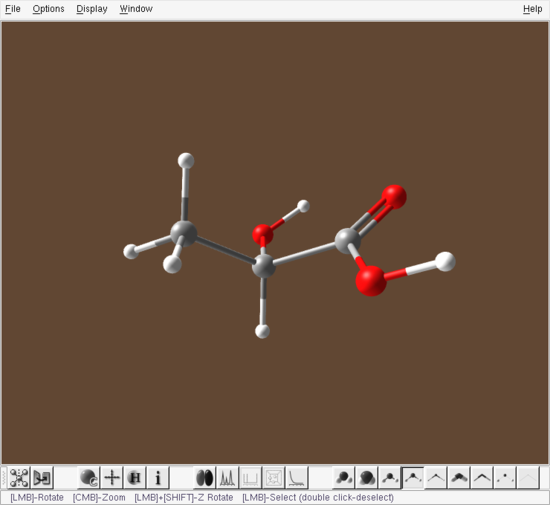
The corresponding view window, displaying the HOMO is shown in Figure . Move the Isosurface level slider to change the isosurface displayed in the View window. Also, experiment with the Cross Sections sliders to produce various display results.

View window - HOMO displayed
|
Select other molecular orbitals in the list to see their display in the View window. Try changing the default settings in the Display→View window, including changing the grid resolution under Display→Orbital→Grid Resolution.
Step 13
Save a screen shot from the View window. |
Once you have produced a "publication-quality" image in the View window, you can save it in JPEG format via the popup menu. Right-click anywhere within the View window and select the Capture menu item. A dialog prompting for a filename appears, Figure .

Save Image dialog
|
You may save the image under the suggested name mol_capture1.jpg in the current working directory by simply pressing the OK button. To turn off the MO display either toggle the state of the Orbitals button in the toolbar or close the Orbitals window.
Step 14
Examine the Vibrational spectrum. |
To display the simulated IR spectrum click on the Vibrational Frequencies button  in the toolbar at the bottom of the View window. The simulated IR spectrum is shown in Figure .

Vibrational Frequencies window - IR spectrum, mode #1 selected
|
The list on the right side of the Vibrational Frequencies window allows access to all of the vibrational frequencies of the molecule (30 in this example). Select the first frequency. A small red arrow appears under the corresponding frequency in the vibrational spectrum and details for that mode appear in green font at the top of the window (mode number, symmetry, frequency and intensity). This mode is primarily a twisting about the C-O bond and has a low intensity that does not show up in the simulated IR spectrum.
Now, activate the Vectors checkbox in the bottom left corner of the window, as shown in Figure . This will show the atomic displacements in the vibrational mode #1 as yellow vectors at each atom of the structure in the View window, Figure . Activate the Animate checkbox to animate the structure by showing the motion in the vibrational mode #1.

View window - vibrational mode #1 displacement vectors
|
Other vibrational modes can be selected from the list at the right side of the Vibrational Frequencies window or by directly selecting the peak in the simulated spectrum.

Vibrational Frequencies window - IR spectrum, mode #24 selected
|

View window - highest intensity vibrational mode #24 displacement vectors
|
Figure shows the displacement in the most intense IR mode #24 and Figure shows the corresponding Vibrational Frequencies window, with the peak highlighted in red.
[PREV]
 Manuals and Guides